Import SVG Into Figma: Icons, Plugins, Flatten, Clean Export
Import SVG into Figma by drag, paste or Shift+Cmd+K, then pick a plugin, flatten or outline, and clean exports. Tested on 287 icons from Figma's own repo.

On this page
- Three ways to import an SVG
- Which icon plugin to install
- What each set looks like after import
- Flatten or outline, and what each one costs
- What Figma adds to an exported SVG
- Removing the frame clip with an SVGO plugin
- The id collision that makes icons vanish
- Making icons follow currentColor
- Building a shared icon library
- From Figma to React in a script
- What we did not test
To import an SVG into Figma, drag the file onto the canvas, press Shift+Cmd+K (Shift+Ctrl+K on Windows), or copy the markup and choose Paste here. Figma turns it into editable vector layers, not an image, so the work that matters comes after: which plugin to use, when to flatten, and how to clean what Figma exports.
This guide also measures that export. We ran 287 icons from Figma's own Simple Design System repo and 230 public SVGs with the Figma export signature through SVGO 4.1.0 and SVGR 8.1.0, then rendered the results in Chrome 156 on November 5, 2026. Plugin numbers come from public Figma Community pages on the same date.
Quick answer
- Import: drag and drop, Shift+Cmd+K, or paste. All three give vector layers. Markers and patterns do not survive a paste, per Figma's docs.
- Plugin: Iconify is the largest, with 4.72m users and 250+ sets. Tabler and Phosphor publish their own, and those were updated in 2026.
- Strokes: keep them live while you design. Outlined icons ignored a stroke width change in all 200 we sampled.
- Export: 131 of 287 icons in Figma's repo carry a frame clip group. Removing it took those from a median 788 bytes to 341.
- Trap: SVGO renames every clip id to the same value. With one icon under visibility:hidden, the next icon vanished in Chrome.
Three ways to import an SVG
| Method | How | Good for | Limit |
|---|---|---|---|
| Drag and drop | Drop .svg files on the canvas | Batches | None we could confirm |
| Place | Shift+Cmd+K or Shift+Ctrl+K | Picking files | Click to place each one |
| Paste | Copy as SVG, right-click, Paste here | Code from a site or a repo | No marker or pattern elements |
The limits come from Figma's pages on adding images and copying between tools. The first says an imported SVG "is no longer treated as an image". You need edit access to the file.
Agents can use Figma's MCP tool upload_assets: SVG files up to 10 MB, 60 per call, as editable vectors. If an import looks broken, open the file in our SVG viewer first. If it renders wrong there too, the markup is at fault, not Figma.
Which icon plugin to install
Plugins skip the file step. Sorted by users below. Search also shows many low-install clones with near-identical names, so check the publisher before you install.
| Plugin | Publisher | Users | Likes | Last version | Price label |
|---|---|---|---|---|---|
| Iconify | Iconify | 4.72m | 34.4k | Oct 30, 2026 | Free |
| Icons8 | Icons8 | 2.33m | 9.7k | Not checked | Paid |
| IconScout | IconScout | 1.19m | 4.6k | Not checked | Paid |
| Feather Icons | Cole Bemis | 1.05m | 9.8k | Not checked | Free |
| Material Symbols | Google Fonts | 790k | 18.2k | Jul 19, 2023 | Free |
| Font Awesome (unofficial) | Vyacheslav Myskov | 760k | 3k | May 16, 2021 | Free |
| Phosphor Icons | Phosphor Icons | 330k | 3.9k | Mar 29, 2026 | Free |
| Lucide Icons | Eric Fennis | 266k | 2.7k | Apr 2, 2025 | Free |
| Heroicons | Dilshod Turobov | 104k | 397 | Aug 14, 2020 | Free |
| Font Awesome (official) | Font Awesome | 95.8k | 1.6k | Aug 13, 2026 | In-app purchase |
| Tabler Icons | Tabler | 71.5k | 1.1k | Sep 25, 2026 | Free |
User count is not freshness. The Heroicons plugin is third party, at version 1, from 2020. The most popular Font Awesome plugin is unofficial and last changed in 2021. An old plugin can still work, but compare it with the current set before you build on it. The price column is the label on the page: we could not confirm the prices behind Paid.
Our pick: Iconify for trying many sets in one panel, and the publisher's own plugin (Tabler, Phosphor, Google's Material Symbols) once you commit to a set.
What each set looks like after import
Forum threads complain about piles of Vector layers. How many you get depends on how the set is drawn. We counted shape elements per icon as a stand-in for layers, not confirmed inside Figma.
| Set | Icons | License | Median shapes | Single shape | Live strokes |
|---|---|---|---|---|---|
| Lucide | 2,015 | ISC | 2 | 38% | 100% |
| Tabler | 6,257 | MIT | 1 | 64% | 83% |
| Heroicons | 1,288 | MIT | 1 | 84% | 25% |
| Phosphor | 9,072 | MIT | 1 | 83% | 0% |
| Material Symbols | 15,761 | Apache-2.0 | 1 | 100% | 0% |
Lucide should leave the most separate layers, all with live strokes. Phosphor and Material Symbols arrive as filled paths, so their weight is fixed: Phosphor ships six weights instead, which is why 1,512 designs become 9,072 files. Choosing between the two most common picks? See Tabler vs Lucide.
Flatten or outline, and what each one costs
These are different operations. Shortcuts are from Figma's pages on flatten and converting strokes. An older version of this post gave the wrong flatten shortcut.
| Action | Mac | Windows | What it does |
|---|---|---|---|
| Flatten | Option+Shift+F | Alt+Shift+F | Merges vector layers into one, destructive |
| Outline stroke | Cmd+Option+O | Ctrl+Alt+O | Turns strokes into filled shapes, no more stroke settings |
We could not run Figma's outline without signing in, so we tested the effect with the Skia stroker on Lucide's icons. Figma's output will differ in detail.
- Stroke width stops working. Setting stroke width to 1 on 200 sampled icons cut the ink to a median 49% on live strokes. On outlined copies nothing changed: 200 of 200 were pixel identical.
- Files get bigger. On the 94 of 200 samples where our outline matched the original within 1%, the median went from 313 to 1,697 bytes, or 224 to 569 gzipped. The other 106 did not match closely enough to count, so read this as a rough ratio.
So keep strokes live through handoff. Outline only for a stroke that needs inside or outside alignment, since Figma's export docs note SVG supports only center strokes, or a shape you will combine with boolean operations.
What Figma adds to an exported SVG
For real output we used Figma's own Simple Design System repo: 287 icons of 16 px generated through Figma's export. We put the hex color back where the repo holds a CSS variable, then ran each through SVGO. Here is IconAlertCircle, indented for reading:
<svg width="16" height="16" viewBox="0 0 16 16" fill="none" xmlns="http://www.w3.org/2000/svg">
  <g clip-path="url(#clip0_68_15555)">
    <path d="M8.00004 5.33325V7.99992M8.00004 10.6666H8.00671M14.6667 7.99992C14.6667 11.6818 11.6819 14.6666 8.00004 14.6666C4.31814 14.6666 1.33337 11.6818 1.33337 7.99992C1.33337 4.31802 4.31814 1.33325 8.00004 1.33325C11.6819 1.33325 14.6667 4.31802 14.6667 7.99992Z" stroke="#1E1E1E" stroke-width="1.6" stroke-linecap="round" stroke-linejoin="round"/>
  </g>
  <defs>
    <clipPath id="clip0_68_15555">
      <rect width="16" height="16" fill="white"/>
    </clipPath>
  </defs>
</svg>
The clip is a rectangle the exact size of the icon, so it hides nothing here. SVGO cleans the numbers, but it leaves the clip in place.
| Figma SDS icons | Raw | SVGO default | SVGO, clip removed |
|---|---|---|---|
| Median, all 287 | 617 B | 368 B | 314 B |
| Median, the 131 with a clip | 788 B | 446 B | 341 B |
| Total | 192,028 B | 108,766 B | 95,109 B |
| Files with a clip after the step | 131 | 131 | 0 |
Outside Figma's repo, we tested 230 public GitHub SVGs with the same attribute signature, one per repo. SVGO cut the total from 252,731 to 127,858 bytes (49.4%). Of 41 files with a clip, 40 kept it after SVGO, and removing frame clips left 4, whose clip does not match the frame size. In a 96 px alpha mask comparison, removing the clip added no difference over SVGO alone: 86 were identical, and 28 moved over 1% of their ink, 1 of those over 5%.
Removing the frame clip with an SVGO plugin
We found no SVGO option for this, so this is the small plugin we tested. It removes a clip only when it is one rectangle at 0,0 with the size of the viewBox. Our SVGO config guide covers other settings, and the SVG optimizer handles a single file.
// svgo.config.mjs
const dropFrameClip = {
	name: 'dropFrameClip',
	fn(root) {
		const svg = root.children.find((n) => n.name === 'svg');
		const [, , w, h] = (svg?.attributes.viewBox ?? '').split(/\s+/);
		const dead = new Set();
		const walk = (node, visit) => {
			for (const child of [...(node.children ?? [])]) {
				if (child.type !== 'element') continue;
				visit(child, node);
				walk(child, visit);
			}
		};
		walk(root, (el, parent) => {
			if (el.name !== 'clipPath') return;
			const kids = el.children.filter((n) => n.type === 'element');
			const r = kids[0]?.attributes;
			if (kids.length !== 1 || kids[0].name !== 'rect' || r.transform) return;
			if (Number(r.x ?? 0) !== 0 || Number(r.y ?? 0) !== 0) return;
			if (r.width !== w || r.height !== h) return;
			dead.add(el.attributes.id);
			parent.children = parent.children.filter((n) => n !== el);
		});
		walk(root, (el) => {
			const m = el.attributes['clip-path']?.match(/^url\(#(.+)\)$/);
			if (m && dead.has(m[1])) delete el.attributes['clip-path'];
		});
		return {};
	},
};

export default {
	plugins: [
		dropFrameClip,
		{ name: 'preset-default', params: { overrides: { convertColors: { currentColor: true } } } },
		'prefixIds',
	],
};
The convertColors line belongs only in a pipeline for one-color icons. It turns every color into currentColor, and 28 of the 230 public files had more than one.
The clip may come from the frame's Clip content setting, in which case turning that off before export would prevent it. We could not open the editor to check.
The id collision that makes icons vanish
Every Figma clip has a unique id based on its node, like clip0_68_15555. SVGO's default cleanupIds shortens ids per file, so all 131 clipped icons ended with the same id="a". Put two inline on a page and the browser resolves url(#a) to the first one in the document.
Usually that goes unseen, as the clips are identical. In Chrome 156 the second icon drew in full when the first was visible, under display:none, or in a zero-size box. With the first under visibility:hidden, the second disappeared.
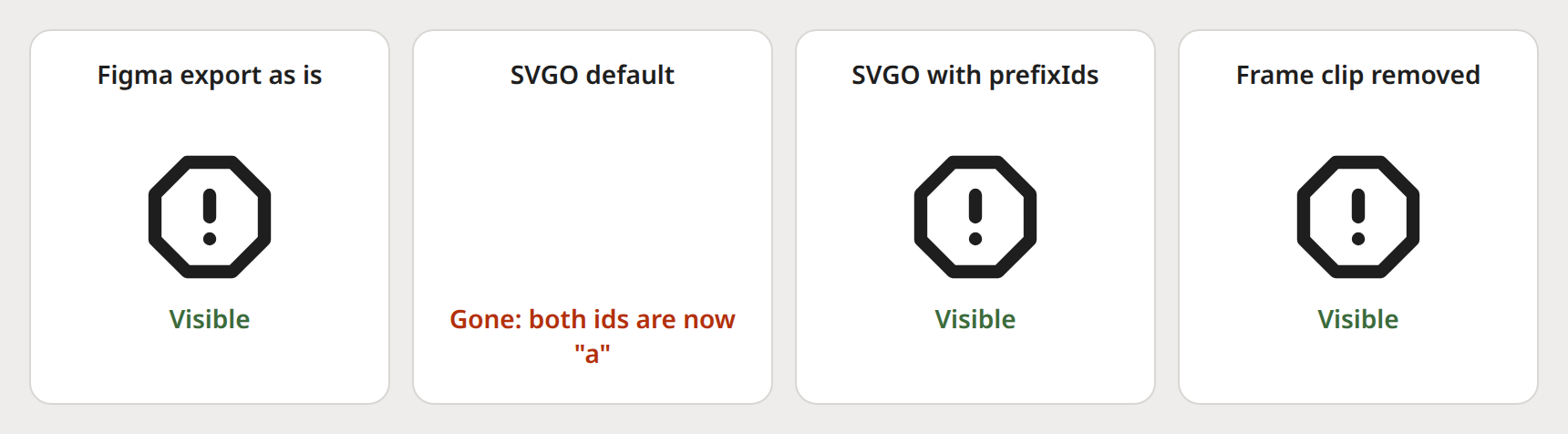
| Second icon's ink, first under visibility:hidden | Different icons | Same icon twice |
|---|---|---|
| Raw Figma export | Full | Gone |
| SVGO default | Gone | Not run |
SVGO with prefixIds | Full | Gone |
| Frame clip removed | Full | Full |
prefixIds fixes different icons, because each file gets its own prefix, but the same icon rendered twice still shares one id: think of a hidden menu that reuses a page icon. Removing the clip fixed both, since no id remains.
Gradients break with nothing hidden. Across 30 ordered pairs from 6 public files with gradients, placing a first icon on the page changed the second in 0 raw pairs, 24 after SVGO default, and 0 with prefixIds.
Figma's Include "id" attribute setting is a different thing: its docs say that id comes from the layer name. An older version of this post said to turn it off to prevent clashes, and we found nothing in the docs to support that.
Making icons follow currentColor
Black shows up as the keyword black far more than #000000: 17 files against 2 in the public set. Tools that match only hex miss those. We tested each method on 153 one-color exports, rendering in red and blue and comparing shape against the original.
| Method | Recolors fully | Shape broken | Both good |
|---|---|---|---|
| SVGO default only | 0 | 1 | 0 |
SVGR --replace-attr-values for #000 (our old script) | 19 | 1 | 19 |
| Regex on hex values only (what Figma's repo does) | 134 | 0 | 134 |
Regex on every fill and stroke | 151 | 41 | 111 |
SVGO convertColors with currentColor: true | 152 | 2 | 150 |
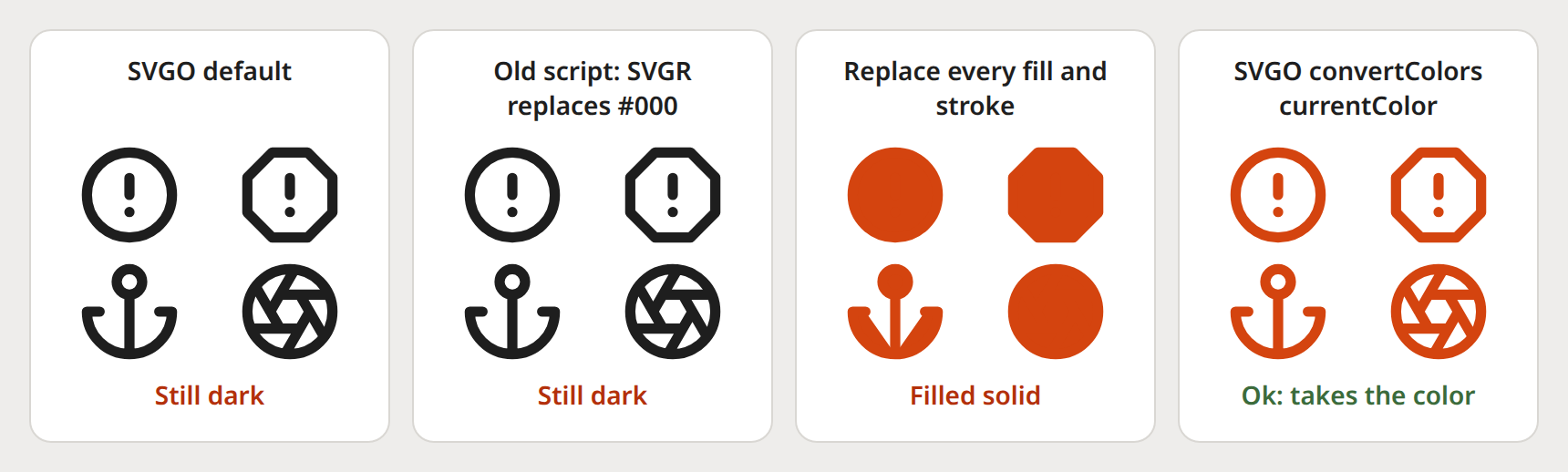
The blunt regex rewrites the root fill="none", so a stroke icon becomes a solid blob. The two convertColors failures were a file using stroke="inherit" and one with small drift, so check a set by eye after a run. For one file, the SVG color editor needs no script.
Building a shared icon library
Publishing needs a paid plan. Figma's library guide limits publishing to Professional and above. Starter has no team libraries, so the common tip "duplicate a community file and publish it as your library" does not work on free. Professional was listed at $16 a month for a Full seat on November 5, 2026. On Starter, copy components across files.
Slash names become folders. Name a component icon/nav/menu and it groups in the assets panel. On bulk export (Shift+Cmd+E or Shift+Ctrl+E), Figma also uses those slashes as nested folders. Our icon naming guide covers what to put in them.
A workable order:
- Import or insert the icons at one size, each in a frame of that size.
- Keep strokes live, and flatten only where a set leaves stray Vector layers.
- Make each icon a component with a slash name.
- Publish if your plan allows it.
- Mark each for SVG export, or pull them through the API.
From Figma to React in a script
Export by hand, or from the REST API with a token in CI. Its defaults are svg_outline_text: true, svg_include_id: false and svg_simplify_stroke: true.
Then run this. svgo --folder rewrites files in place. It replaces the script in our older post, which recolored only 19 of 153 files.
{
  "scripts": {
    "icons:optimize": "svgo --config svgo.config.mjs --folder assets/icons",
    "icons:generate": "svgr --typescript --icon --out-dir src/components/icons assets/icons"
  }
}
On the same 153 files: 152 recolored, 150 passed with shape intact, and all kept their viewBox. Only 7 still had an id, prefixed like i0002_svg__a.
Next: our React SVG icons guide for usage, the SVG to component tool for one icon, and adding custom Lucide icons to fit your own into that set.
What we did not test
- The Figma editor.
figma.newredirects to login and we did not sign in, so drag, paste, flatten, outline and export behavior come from Figma's docs, not our runs. - The outline numbers. Those use Skia on Lucide's icons, and only 94 of 200 matched closely enough to count. Figma's byte sizes will differ.
- The public 230. They match Figma's attribute signature, but we cannot prove each came from Figma. GitHub code search chose them by its own ranking, at 16 and some 20 px, so they are not a random sample.
- Paid plugin prices, and how current any plugin's icons are. We read labels and version dates only. We did not capture Noun Project's numbers.
- Other browsers. The vanish test ran only in Chrome 156.
How do I import an SVG into Figma?
Does Figma support SVG import officially?
What is the best free icon plugin for Figma?
Should I outline strokes before exporting icons?
Why did my inline SVG icon disappear after SVGO?
Can I publish an icon library on the free Figma plan?
Related posts